BLOG

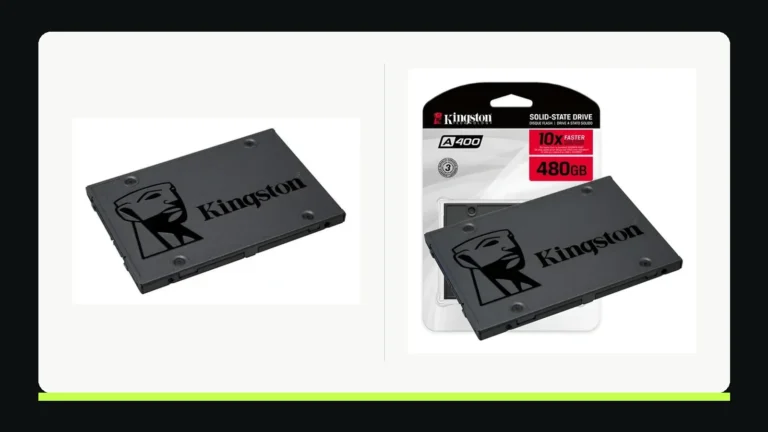
ADATA SU650 or Kingston A400 at 240GB? Both are entry-level 2.5-inch SATA SSDs that can replace a compatible laptop or desktop hard drive. Comparing the same nominal capacity keeps the physical format and storage size broadly equivalent. ADATA’s 240GB SU650 data sheet lists higher maximum sequential write speed and a larger TBW figure than Kingston’s 240GB A400 sheet. Those are vendor specifications under different test conditions, not a head-to-head benchmark or proof that one drive will last longer in your computer. Check fit, genuine part numbers, current US warranty terms and actual storage needs before deciding.
We used the ADATA SU650 data sheet, Kingston’s US A400 sheet and the makers’ current US ADATA catalog and A400 page. We did not benchmark units, check a live US offer or test reliability. Some warranty tables can vary by generation and region; verify terms for the actual serial-numbered product.
240GB versions side by side
| Specification | ADATA SU650 240GB | Kingston A400 240GB |
|---|---|---|
| Physical format | 2.5-inch, 7mm | 2.5-inch, 7mm |
| Interface | SATA 6Gb/s | SATA Rev. 3.0, backward compatible |
| Max sequential read | Up to 520MB/s | Up to 500MB/s |
| Max sequential write | Up to 450MB/s | Up to 350MB/s |
| 240GB TBW in cited sheets | 140TB | 80TB |
| Warranty | Check current US SU650 terms | Limited three years, subject to terms |
Do not read the highest figures on an all-capacity product page as guaranteed performance of every size. The table uses the 240GB rows in the linked sheets. A manufacturer’s “up to” number can change with file size, test setup, drive fill level, firmware and computer. Neither TBW number is a countdown to a guaranteed failure date, and neither establishes a comparative field failure rate.
Check the computer before comparing SSD labels
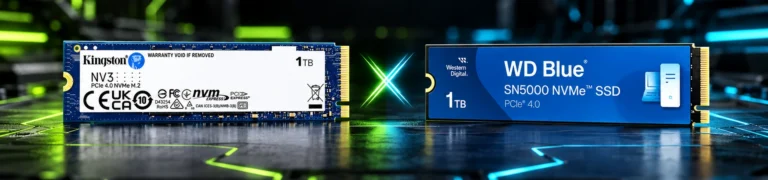
Both products here are 2.5-inch SATA drives, not M.2 NVMe modules. A slim laptop may have only an M.2 slot; another may have a 2.5-inch bay but lack the necessary ribbon cable or bracket. A desktop may need a SATA data cable, a power lead and a secure mounting position. Identify the existing drive and consult the computer’s service manual before ordering. A 2.5-inch SATA SSD cannot be placed in an M.2 slot simply because both are called SSDs.
The 7mm thickness fits many bays, but a computer designed around a thicker hard drive may use a spacer or caddy. Do not force the connector or leave the drive loose where it can strain the cable. Confirm that the BIOS or UEFI sees SATA drives on the intended port and whether a particular slot is disabled when another port is in use. Some laptops are harder to open than a marketing photo suggests; if the work device is under an employer’s maintenance policy, obtain the approved procedure.
For an external enclosure, verify that it accepts a 2.5-inch SATA drive with the proper connector, not merely a drive of the same physical width. A USB-to-SATA adapter used for migration must also support the capacity and operating system. If the target computer only accepts NVMe, stop and choose a compatible drive rather than trying to adapt an incompatible protocol.
What the speed figures do and do not tell you
ADATA lists up to 520MB/s read and 450MB/s write for the 240GB SU650; Kingston lists up to 500MB/s read and 350MB/s write for the 240GB A400. The ADATA sheet’s larger write ceiling may attract a buyer who often copies large files. But a ceiling from one manufacturer’s lab cannot be treated as a measured winner over another company’s test. Sustained writes, small random files, thermal conditions and almost-full drives can behave differently.
Replacing a mechanical hard drive with either SSD can reduce the delay associated with locating many small files. How much a particular PC feels faster depends on CPU, RAM, operating system and the condition of the existing drive. A computer already using a healthy SATA SSD may show little everyday improvement from swapping to another entry-level SATA model. If slow performance comes from insufficient memory or a busy processor, changing storage alone will not solve the underlying bottleneck.
For a fair speed comparison, use the same computer, SATA port, system image and workload with drives of the same capacity and similar fill levels. We have not done that. Published tests of one SU650 in a laptop and one A400 in a different desktop cannot be combined as though they were a controlled duel. Give compatibility, capacity and support more weight when the published maxima differ modestly.
TBW, warranty and what “reliable” means
TBW means total bytes written under a defined endurance rating. The cited ADATA sheet states 140TB for its 240GB SU650; the cited Kingston US sheet states 80TB for its 240GB A400. A larger rating describes a higher specified write allowance in those documents, not a promise that the drive will survive a specific number of years or that the other drive fails earlier. Data-sheet revisions, part numbers and warranty conditions matter.
Kingston lists a limited three-year warranty and its US sheet describes a usage-related condition. ADATA publishes warranty and TBW terms by model and capacity, and older tables can list different SU650 entries. Check the current official term associated with the exact part and seller before assuming the 140TB figure is also the warranty limit. An invoice, authentic serial number and local support path are important in a claim. A suspiciously cheap unit from an unclear seller may make a small nominal speed advantage irrelevant.
MTBF or MTTF values are statistical indicators, not a life expectancy guaranteed for an individual drive. Public owner anecdotes include both drives that ran for years and units that failed early. Such stories can prompt questions about backup and warranty, but they do not establish comparative failure rates. Keep independent backups regardless of which 240GB drive you choose.
Is 240GB enough for office work?
Nominal 240GB is not the same as the space displayed after formatting, and system files, applications, updates and working data reduce free capacity. Check how much storage the current computer actually uses, then add room for updates and projects. A 480GB or larger drive can be more sensible if 240GB would be nearly full from the first day. Do not compare a cheap 240GB listing with a 480GB listing without recognizing the different capacity and per-gigabyte cost.
For a document-focused workstation with cloud files and few local applications, 240GB may be workable. For photo or video assets, virtual machines, design files or large offline catalogs, it can be restrictive. A drive that is constantly near capacity is inconvenient even if it meets an initial budget. Decide the required storage before asking which brand is faster.
Plan the migration before touching the old disk
Back up important files to an independent destination and verify that you can read them. If cloning, confirm that the used space fits on the new drive and that the migration tool recognizes both devices. Some laptops need a USB-to-SATA enclosure to connect the new SSD before installation. Do not erase or repurpose the old drive until the computer boots from the SSD and important files, apps and licenses are checked.
A clean operating-system installation may be appropriate if the old system has accumulated problems, but it requires installation media, drivers, app installers, recovery information and a verified data backup. For a company computer, account for encryption, device management and customer data policy before removing storage. No SSD maker’s “migration utility” label substitutes for a backup that has been tested.
After installation, verify the correct drive in BIOS/UEFI and the operating system. Check health through a trusted maker tool, confirm boot and sleep/wake, and open the applications the person uses daily. If a drive disappears, investigate cable, port and power before formatting anything. Formatting destroys data. The goal is a working machine, not merely a benchmark screenshot.
Total cost and buying checks
Add the drive, mounting parts, cable or enclosure, backup storage and installation labor. Check seller, condition, exact SKU, warranty and return policy. A counterfeit or refurbished unit sold as new changes the decision more than a small advertised speed difference. Compare current US offers for the 240GB SU650 and the 240GB A400 SA400S37/240G, not a related M.2 model or another capacity.
Keep the original drive available until the migration passes its acceptance checks. If the computer has a swollen battery, overheating or other serious hardware problem, a storage upgrade does not fix it. Evaluate whether repair or replacing the computer is a better use of funds. Storage performance is only one part of an old PC’s overall state.
Security and retirement of the old drive
For a business computer, storage changes are also a data-handling task. Check whether the current disk is encrypted and whether the organization has recovery keys before cloning or reinstalling. An encrypted volume may require an authorized unlock process, and a clean installation can break access to applications or certificates if they were not documented. Keep a verified backup that is separate from both the old and new drives.
When the new SSD is accepted, decide what to do with the old disk. It may be useful as a temporary rollback source, but a drive containing customer records should not be sold or discarded without following the organization’s retention and secure-erasure procedure. A damaged drive may not accept a software wipe, so physical handling may be required under the applicable policy. The choice between SU650 and A400 does not remove this obligation.
Finally, confirm that any health-monitoring utility comes from the actual manufacturer. A random “SSD booster” download is not needed to prove a drive works and may create a security problem. Monitor the new drive’s reported health over time, investigate recurring errors and restore from backup when needed. An SSD is a working component, not an independent archive of irreplaceable files.
Frequently asked questions
Which is faster at 240GB?
The linked manufacturer sheets give SU650 higher sequential maxima, particularly for writes. We have no controlled head-to-head test on the same PC, so cannot claim it is always faster in real work.
Will either fit every laptop?
No. The laptop needs a compatible 2.5-inch SATA bay, connector and mounting arrangement. Check the service manual before buying.
Does higher TBW mean the SU650 will last longer?
Not necessarily. TBW is a specified write rating, not a field failure probability or guaranteed individual lifetime. Backup and warranty remain essential.
Can I clone without a backup?
That is risky. Make an independent, verified copy first and keep the old disk intact until the new system and files are checked.
Verdict
At equal 240GB capacity, the SU650 has stronger stated sequential-write and TBW figures in the cited sheets. The A400 remains a documented SATA option with clear US part identification. Choose the authentic drive with the better total offer and usable warranty after confirming compatibility and capacity. Neither data sheet can tell you which unit will last longer in your particular PC.