BLOG

A webcam for client meetings should make you easy to see and frame reliably, not merely advertise the largest resolution. A 720p camera can be enough for a small video tile; 1080p gives more detail; 4K may help with cropping or recording, but only when your software, connection, and lighting let you use it. Focus behavior, field of view, privacy, microphone needs, and the USB connector often matter more than a single headline number.
This US adaptation of our Brazilian seven-webcam guide keeps its meeting, teaching, and home-office use cases. Several Brazilian models in the original are not treated as equivalent US offers. The seven cameras below have current manufacturer documentation in English. We did not test their picture, microphone, autofocus, or low-light behavior ourselves. Descriptions such as “better image” are therefore limited to documented features, not presented as a measured ranking.
Webcams for Meetings: Seven webcams at a glance
| Camera | Documented capture | Useful distinction | Check before buying |
|---|---|---|---|
| Logitech C270 | 720p/30 fps | Simple basic video calls | Lower resolution and narrow field of view |
| Logitech Brio 100 | 1080p | Built-in privacy shutter | Lighting still matters |
| Logitech C920s | 1080p/30 fps | Autofocus, dual microphones, shutter | Fixed 78-degree field of view |
| Razer Kiyo X | 1080p/30 or 720p/60 | Flexible video modes and autofocus | Software controls depend on host platform |
| Elgato Facecam Neo | 1080p/60 | USB-C, autofocus, tripod thread | No built-in microphone; verify USB port |
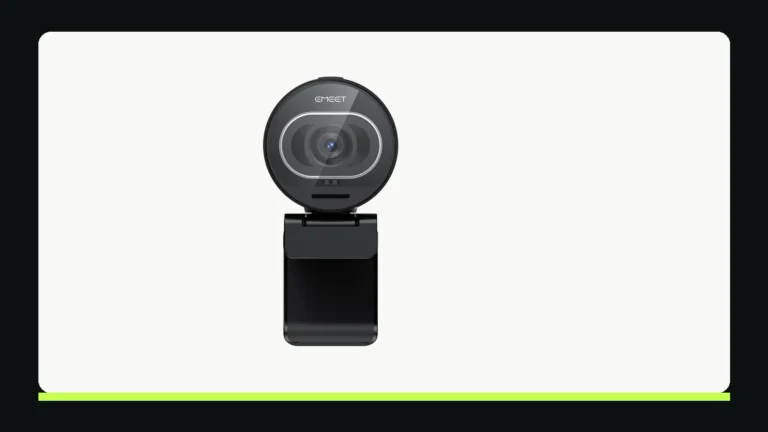
| EMEET SmartCam S600 | 4K/30 or 1080p/60 | Adjustable view and privacy cover | 4K is not guaranteed in every meeting app |
| Logitech Brio 500 | 1080p | Auto-framing and Show Mode | Some features require Logi Tune |
Choose the camera around the call, not the spec sheet
Start with the platform and the type of call. If you appear in a small tile while sharing a screen, 4K capture may add little practical value. If you record a course, crop a frame, or show a physical product, resolution and focus behavior can matter more. Check what Zoom, Teams, Meet, or your recording program actually accepts from the camera and what it sends to viewers. A camera’s capture capability and the resolution delivered by a meeting service are different things.
Place the camera near eye level and improve light before buying a more expensive model to solve a dark image. A bright window behind you can make exposure difficult for any webcam. A small, soft light in front of you may be a more useful improvement than moving from 1080p to 4K. For audio, a headset or separate microphone can outperform the convenience of a built-in webcam microphone in a noisy room, but that is setup-dependent; we have not tested these units side by side. If privacy matters, check whether a shutter is integrated, removable, or absent.
1. Logitech C270: a basic call camera
The Logitech C270 supports 720p at 30 frames per second and has a 55-degree diagonal field of view according to Logitech. It is a straightforward option for one person seated at a desk. A narrower view can leave less of the room visible, which may suit a tight workspace, although it also gives you less freedom to move.
This is the sensible baseline when the built-in laptop camera is broken, poorly positioned, or absent and the main task is ordinary calls. It is not a 1080p model, and enlarging its image will not recover details that were never captured. Logitech describes automatic light correction, but that does not replace proper lighting. Check the USB connection and compatibility of the exact retail unit. The original Brazilian guide included the C270; its US manufacturer listing supports the same basic role without relying on a Brazilian marketplace offer.
2. Logitech Brio 100: 1080p with a shutter
Brio 100 is positioned as a Full HD 1080p camera with an integrated privacy shutter and built-in microphone. That combination is attractive for a person who wants a simple external camera for meetings without a separate app-controlled feature set. Sliding the shutter closes the lens when the call ends. It is a visible privacy control, but remember that the microphone may still be available to software unless disabled separately.
Logitech describes an auto-light balance feature and cites its own comparison with the C270. That is manufacturer testing, not our test, and results can vary with the room and time of day. Do not interpret a percentage in marketing copy as a guarantee in your office. The practical upgrade over a basic 720p unit is the documented resolution and shutter. Whether the image looks better to participants depends on lighting, the application, and their viewing size.
3. Logitech C920s: autofocus and a fixed 78-degree view
The C920s records or calls at 1080p/30 fps, with a fixed 78-degree field of view, autofocus, dual microphones, and a privacy shutter. It is a more complete meeting camera if you move within the frame or occasionally hold an object up to the lens. Autofocus can help keep the subject sharp, but it can also change focus during a demonstration; confirm how the relevant software handles it.
The fixed view is a real choice. It may include too much room behind you on a narrow desk or be useful when two people sit together. Software cropping can sometimes change the framing at the cost of discarding pixels. The C920s remains a 30 fps camera at 1080p, so it is not the pick for someone whose main requirement is 60 fps capture. The shutter is convenient for shared home or office spaces. Confirm that a seller lists C920s rather than a similar C920 variant with different packaging.
4. Razer Kiyo X: 1080p detail or 720p motion
The Razer Kiyo X offers 1080p at 30 fps or 720p at 60 fps, with autofocus and settings exposed through Razer software. This is a useful trade-off for someone who alternates between meetings and more active on-camera demonstrations. Choosing 720p/60 fps prioritizes smoother motion; choosing 1080p/30 fps prioritizes more pixels per frame. Neither mode ensures that a video-call service will transmit at that exact setting.
Razer discusses mounting on a monitor, desk, or tripod. Check the mount and the position you need: an off-center webcam can make eye contact look odd during client calls. The full set of customization controls may depend on the supported operating system and software, so do not buy it solely for one setting without checking compatibility. The camera replaces one of the Brazil-specific gaming-oriented models in the source article; we do not claim its sensor or image quality is identical.
5. Elgato Facecam Neo: smooth Full HD, separate audio
Elgato Facecam Neo lists 1080p/60 fps, autofocus, a 77-degree field of view, a fixed USB-C cable, and a standard quarter-inch mounting thread. Elgato’s technical specification provides supported capture formats and focus information. Its combination can suit tutorials, demonstrations, and video recording as well as meetings.
The important omission is a built-in microphone: Elgato’s comparison chart marks Facecam Neo as having none, so plan to use a headset or separate mic. That is not a drawback for someone who already owns audio gear, but it can be an unexpected extra purchase for a basic office setup. The fixed USB-C cable also affects placement; a USB-A adapter may be needed for an older computer. Confirm the current system requirements because manufacturer help pages and store pages can refer to different software versions. Its US store availability may fluctuate; a documented product is not proof of stock at every retailer.
6. EMEET SmartCam S600: 4K capture and adjustable framing
The EMEET SmartCam S600 lists 4K at 30 fps or 1080p at 60 fps, autofocus, a field of view adjustable from 40 to 73 degrees, two microphones, and a rotating privacy cover. That is a feature set for someone who records material in addition to joining calls. The adjustable framing can help show less background when you are alone and more of a product when demonstrating it.
4K capture is only useful when the recording or meeting workflow actually preserves that resolution. It may also demand more storage, processing, and upload bandwidth for local recordings. The manufacturer’s supported-video list is evidence of what the camera can output, not a claim that every app will use its best mode. Confirm the S600 variant rather than the S600L or a C960-family model, since their hardware and lighting features differ. No image-quality ranking is inferred from the 4K label alone.
7. Logitech Brio 500: meeting features beyond resolution
Brio 500 is a Full HD meeting camera with auto-framing and Show Mode for presenting objects on the desk. Those are workflow features, not a higher headline resolution than Brio 100. Logitech states that auto-framing requires its Logi Tune software and that Logi Tune is not available for ChromeOS. Check the platform you use before paying for a feature you may not be able to enable.
For someone who teaches, presents sketches, or moves during a conversation, the difference can be more useful than a jump in raw pixel count. For someone who sits still and shares slides digitally, a simpler 1080p camera may be sufficient. Auto-framing changes the crop and cannot replace careful camera placement or good light. Verify the connection and exact computer compatibility, especially in an organization that restricts software installation. The Brio 500 is a US-facing replacement for one of the source article’s more feature-oriented models.
What to check before buying
- Confirm capture resolution and frame rate together, such as 1080p/30 or 1080p/60.
- Check your meeting service’s output settings; the camera’s highest capture mode may not reach other participants.
- Decide how much of the room should appear. A wide field of view is not always desirable.
- Check autofocus, fixed focus, and whether the camera can focus at the distance of a product demonstration.
- Confirm the microphone plan. Some models have one or two mics; Facecam Neo is designed around separate audio.
- Review the USB connector and cable length against your laptop and monitor placement.
- Check whether privacy is handled by a physical shutter, cover, or only software controls.
- Read the exact operating-system and app requirements for auto-framing or image controls.
Frequently asked questions
Does a 4K webcam make every video call 4K?
No. The camera may capture 4K, while the meeting service sends a lower-resolution stream. Account settings, bandwidth, participant layout, and the application can all limit the delivered picture. Check the service’s own support documentation for your plan and device.
Is 60 fps better than 30 fps for meetings?
It can make motion smoother when the software accepts and transmits 60 fps. For a seated conversation, good light, accurate focus, and clear audio often matter more than the frame-rate difference. We did not test these seven cameras under a common lighting setup.
Can a webcam microphone replace a headset?
It can be convenient in a quiet room, but distance, room echo, and background noise affect the result. If client calls are central to the job, check microphone performance in your own space and consider a headset or dedicated microphone if needed.
Which one fits your work?
Start with C270 for basic 720p calls; Brio 100 for straightforward 1080p and a shutter; C920s for autofocus and dual microphones; Kiyo X when you want a choice between 1080p/30 and 720p/60; Facecam Neo for 1080p/60 with separate audio; S600 for 4K-capable recording and adjustable framing; and Brio 500 for software-supported meeting features. Check the precise requirement that separates each model, then compare current US offers. There is no universal winner without knowing your room, platform, and audio setup.
Sources and editorial scope
The cited Logitech US catalog, Razer product page, Elgato product page, and EMEET product page support the model characteristics. This is a source-based buying guide. We have not conducted hands-on comparisons, measured microphone quality, or checked an affiliate offer.